How to Make a Simple Comic for Primary School Kids: From Paper to Digital Comics
Course Guides8 min
Course Guides

Maya Putri
Early Childhood Education Specialist
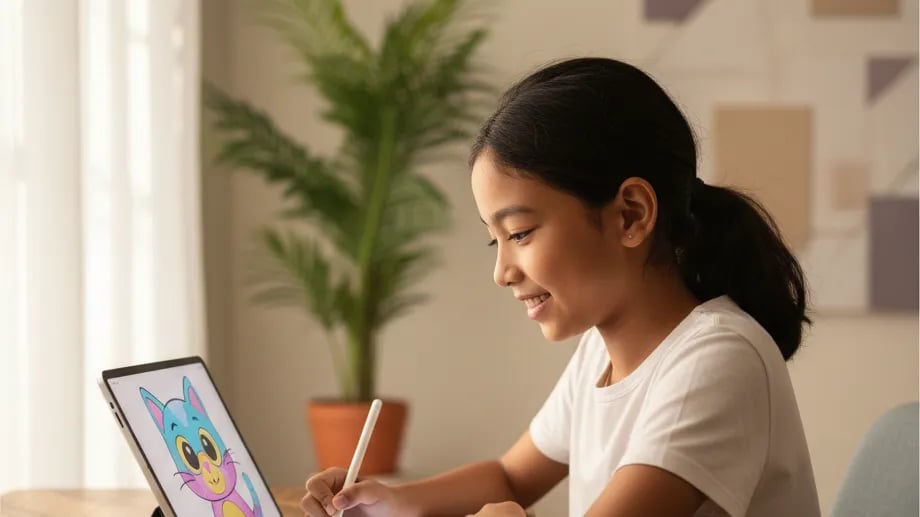
There are free, safe drawing apps for kids on every kind of device: Tux Paint for ages 3 to 12 on a laptop or Android tablet, ibisPaint X and Sketchbook on phones and tablets, and Krita and GIMP on laptops. For primary school kids aged 6 to 12, choose by the device you already have at home first, then look at features. Every main app on this list can be used without paying.
Algonova is an online coding, math and design school for kids with more than 1,000,000 students in 97 countries. Classes run live with a teacher, in groups of up to 10 children, from Rp 102,000 per session, and parents rate us 4.9. In the design program, kids aged 8 to 15 work in GIMP, Inkscape, Tinkercad and Wick Editor, all of which are free.
Seven free apps make the most sense for kids, plus one paid app for comparison. The "suggested age" column is our suggestion; app store ratings are in the notes.
| App | Devices | Cost | Suggested age | Notes for parents |
|---|---|---|---|---|
| Tux Paint | Windows, macOS, Linux, Android tablets, Chromebooks | Free, no ads | 3 to 12 | Made for kids, with stamps and sound effects |
| ibisPaint X | Android phones and tablets, iPhone, iPad | Free with ads | 8 and up | Lots of brushes, layers and animation; in-app purchases |
| Sketchbook | Android phones and tablets, iPhone, iPad | Free | 8 and up | Clean interface, no ads listed on Google Play; has in-app purchases |
| Krita | Windows, macOS, Linux, Android tablets, Chromebooks | Free, open source | 10 and up | Android version is still beta and not available for phones |
| GIMP | Windows, macOS, Linux | Free, open source | 10 and up | Strong for drawing and photo editing |
| Inkscape | Windows, macOS, Linux | Free, open source | 12 and up | For vector art, logos and posters |
| MediBang Paint | Phones, tablets, computers | Free with ads | 12 and up | Rated 12+ on Google Play, has comic panel tools |
| Procreate | iPad only | Rp 195,000 one-time | 10 and up | No subscription; the iPhone version is Procreate Pocket |
Platform details come from the official Tux Paint and Krita sites, and prices and ratings from Google Play and the Indonesian App Store as of October 2026. Apps can change prices or features, so check the store page again before installing.
On phones and tablets, start with ibisPaint X or Sketchbook; both are free and run on Android and iOS.
ibisPaint X suits kids who already love drawing characters. According to its Google Play description, it has more than 130,000 brushes, layers, screentones and frame-by-frame animation. The downside is ads and in-app purchase offers, so it's best if a parent installs it and sets up the phone.
Sketchbook is calmer. The interface is simple and its Google Play page lists no ads, so your child isn't interrupted while drawing. If your child uses an Android tablet or a Chromebook, Krita and Tux Paint can also be installed from Google Play.
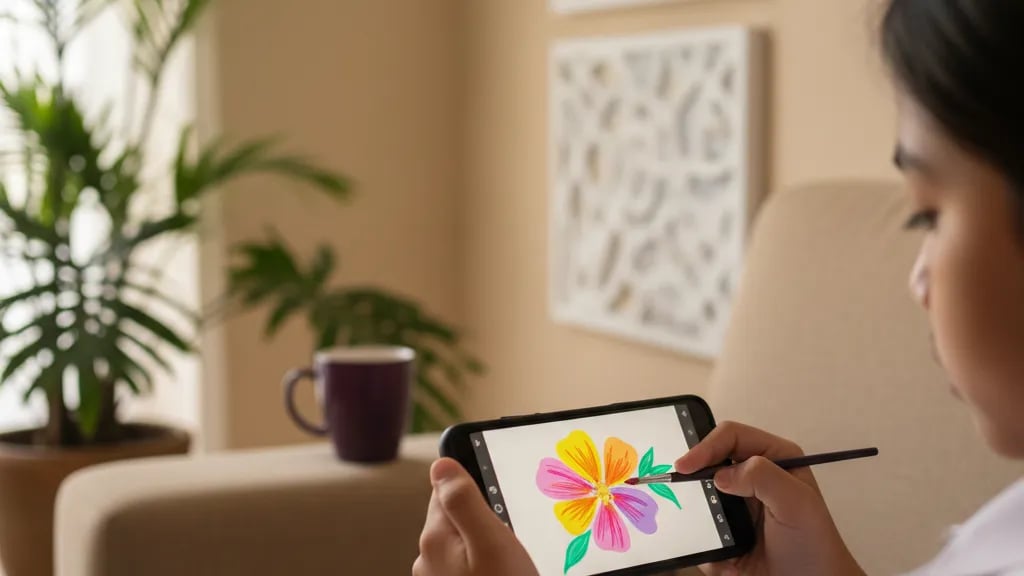
About drawing on a phone: a 6 inch screen is fine for quick sketches and coloring, but tiring for detailed work. A finger is also less precise than a stylus. A 10 inch tablet with a cheap stylus already feels far more comfortable. iPad users can choose Procreate for Rp 195,000, but the free apps above are plenty for the first year.
One thing parents often miss: MediBang Paint is rated 12+ on Google Play in Indonesia. For kids under 12, pick ibisPaint X or Sketchbook.
Free apps are more than enough for the first year. What keeps a child going is one finished piece they can show the family.
Maya Putri, Child Education Specialist
On a laptop, Tux Paint fits kids from kindergarten to grade 3, while Krita and GIMP suit kids aged 10 and up who are getting serious.
Tux Paint is designed for ages 3 to 12 and has no ads. The buttons are big and there are stamps, effects and sounds, so young kids can dive in without being taught. It runs on Windows 8 and later, so an older family laptop still gets used.
For older kids, Krita is a full digital painting app with brushes, layers and a line stabilizer. GIMP is more versatile because it handles both drawing and photo editing, and Inkscape is for vector art such as logos and posters. If your child wants their drawings to move, Wick Editor opens right in the browser for making short animations.
A mouse is enough to start. A drawing pen tablet helps, but isn't required at first. We cover laptop specs for graphic design in our guide to laptops for primary school coding, and you can see work by kids aged 8 to 11 on the digital drawing course for primary school kids page.
The younger the child, the fewer buttons they need; layers and special brushes only become useful around age 10.
| Age | Suitable apps | What to practise |
|---|---|---|
| 4 to 6 | Tux Paint | Shapes, colors, stamps, drawing through play |
| 7 to 9 | Tux Paint, Sketchbook, ibisPaint X | Lines, neat coloring, simple characters |
| 10 to 12 | ibisPaint X, Krita, GIMP | Layers, shading, short comics, simple animation |
| 12 and up | Krita, Inkscape, MediBang Paint | Illustration, poster design, logos, comic panels |
Other safe habits, like not sharing artwork under a full name, are covered in digital literacy for kids.
A 7-year-old doesn't need a hundred brushes. They need buttons that are easy to find and an adult who wants to see the drawing.
Maya Putri, Child Education Specialist
An app gives your child the tools, but it doesn't teach composition, color or how to build a character; that's where guided practice comes in.
Many kids give up after two weeks because their results don't look like the drawings they see online. Usually the app isn't the problem. The child doesn't yet know how to use layers, pick a color palette, or arrange a picture so it looks good. Practising for 20 to 30 minutes, two or three times a week, with one small goal each time, does far more than trying ten apps.
Practice ideas to try right away: redraw a favorite character on three layers (sketch, lines, color), make a poster for a school event, or turn a drawing into a simple four-panel comic. Kids who like moving pictures can move on to animation in Scratch.
If you're choosing a class, read our guide to choosing a kids' drawing course and the breakdown of kids' graphic design course costs. The learning order from drawing to portfolio is on the digital designer path for kids.
Want to see your child make their first digital artwork? Try the graphic design course for kids with a free 60-minute master class.
For primary school kids, Tux Paint fits best in grades 1 to 3, while ibisPaint X, Sketchbook or Krita suit grades 4 to 6. Tux Paint is made for ages 3 to 12, with big buttons, no ads, and support for laptops and Android tablets. Once a child can draw lines and color confidently, they usually start wanting layers and more brushes. At that point ibisPaint X or Sketchbook on a tablet, or Krita on a laptop, feels more rewarding. For example, a grade 2 child new to digital drawing can play with stamps and effects in Tux Paint for a few weeks. When they reach grade 4 and start drawing their own cartoon characters, they can move to ibisPaint X to keep the sketch and the color on separate layers. Pick one app and stick with it for at least a month before switching, so your child has time to really learn it.
Yes. Tux Paint, Krita, GIMP and Inkscape are free with no ads, and Sketchbook's Google Play page lists no ads either. Tux Paint, Krita, GIMP and Inkscape are open source software built by communities, so there are no ads or subscriptions. Sketchbook is free on Android and iOS with a clean interface. By contrast, ibisPaint X and MediBang Paint are free but show ads and offer in-app purchases. For example, a family installs ibisPaint X on their 8-year-old's tablet, and the child keeps tapping into ads by accident while drawing. After switching to Sketchbook and Tux Paint, the interruptions stop. If you still choose an app with ads, turn on airplane mode while your child draws and set a password for store purchases. It's a simple step that works well.
On an Android phone, the most practical choices are ibisPaint X and Sketchbook; both are free on Google Play. ibisPaint X has lots of brushes, layers, screentones and animation features, which suits kids who love drawing characters. Sketchbook is simpler and lists no ads, so it's comfortable for beginners. The Android version of Krita isn't available for phones yet because its interface is built for large screens, and MediBang Paint is rated 12+ on Google Play in Indonesia. For example, a 9-year-old who only has access to a parent's phone can use Sketchbook for sketching and coloring after school. A cheap rubber-tipped stylus already makes the lines neater than a finger. A phone screen is still small for detailed drawings. If your child starts drawing regularly, a tablet or laptop will feel much more comfortable.
No. A child can start drawing digitally on a laptop with a mouse, then add a pen tablet or touchscreen tablet once they draw regularly. Apps like Tux Paint, Krita and GIMP run on an ordinary laptop. A mouse is less fluid for curves, but it's enough to learn layers, coloring and composition. In Algonova's design classes, kids can also start on an ordinary computer or laptop, and a drawing tablet isn't required. For example, a 10-year-old spends the first month learning layers and color selection in GIMP with a mouse. Once it's clear they're drawing almost every day, the parents buy a small pen tablet, and the lines get smoother straight away. So buy equipment after the interest shows, not before. An entry-level pen tablet generally costs far less than a touchscreen tablet.
Kids can start trying digital drawing around age 4 or 5 with a simple app like Tux Paint, while still drawing on paper. At this age the goal is playing with shapes and colors, not producing tidy pictures. Tux Paint is designed for preschool through primary school. Features like layers and special brushes only become truly useful around age 9 or 10, when kids start planning their drawings. For example, a kindergartener can build a landscape with sun and tree stamps in Tux Paint for 15 minutes, then redraw the same scene with crayons. The mix trains imagination and hand strength at the same time. Algonova's design program itself starts at age 8, with Design Junior for ages 8 to 11 and Design Senior for ages 12 to 15.
Kids can use Canva, but under its terms of use, children under 13 may only use Canva through Canva Education. Canva Education is a free plan for schools, and students usually join through a teacher's invitation. Canva itself is better for putting together posters, presentations or comics from templates than for free drawing. For drawing from scratch, apps like Tux Paint, Sketchbook or Krita are a better fit. For example, a grade 5 child gets an assignment to make a cleanliness poster. If the school already uses Canva Education, they can do it there. They can draw the character first in Sketchbook, then upload it into the poster design. Ask the class teacher whether the school has Canva Education access before your child creates their own account.
Krita focuses on painting and illustration, GIMP is versatile for drawing and photo editing, and Inkscape is built for vector art such as logos and posters. All three are free, open source, and run on Windows, macOS and Linux. Krita has natural-feeling brushes and a stabilizer for smooth lines. GIMP works with raster images, much like a photo editor, so it suits collages and coloring. Inkscape uses vectors, so drawings can be enlarged without getting blurry. For example, a 12-year-old wants to make a logo for the school football club. Inkscape fits best because the logo has to stay sharp on both shirts and banners. For drawing the mascot in a painterly style, Krita is more comfortable. In Algonova's design program, kids use GIMP and Inkscape, plus Tinkercad for 3D and Wick Editor for animation.
For primary school kids, digital drawing sessions of 20 to 30 minutes, two or three times a week, are enough to improve without piling on screen time. Digital drawing still counts as screen time, even though it's creative. Short sessions with one goal, such as coloring one character or trying one new brush, keep a child focused. Long sessions without a goal often end with the child just scrolling through other people's artwork. For example, a 9-year-old draws every Tuesday and Friday afternoon for 25 minutes. Each session they finish one small drawing, and within a month there are eight pieces to show the family. Mix in drawing on paper. Hand practice on paper still helps the quality of lines on screen.
Not necessarily. Digital and paper drawing complement each other, as long as your child gets time for both. Paper trains hand pressure and patience because there's no undo button. Digital makes it easy to experiment with color, layers and revisions without fear of ruining the picture. Many illustrators sketch on paper, then move the sketch into an app for coloring. For example, an 11-year-old sketches a comic character in a sketchbook, photographs it with a phone, then colors it in ibisPaint X. This way they keep practising lines on paper while learning digital coloring techniques. If your child only wants to draw on screen, set a simple rule: one paper sketch before opening the app. A small habit like this keeps things balanced.
An app is enough for trying things out and playing, but a course helps kids who want to improve because it gives a clear sequence and feedback from a mentor. Without guidance, kids tend to repeat the same style and get bored when their results stop improving. A course teaches basics like composition, color theory and layers step by step, then combines them in real projects. The child's work also builds up into a portfolio. For example, a 10-year-old has drawn alone on a tablet for six months, but every drawing is a character in the middle of a white background. After learning composition and backgrounds, the drawings start telling stories and look more mature. The easiest way to judge the fit is Algonova's free 60-minute design master class, with no card and no commitment.

Algonova worldwide
Contact
Whatsapp: +62 21 50996971
Email: info@algonova.id
Address
Coworking Area, Gedung IT 6 Lantai Dasar, Nongsa Digital Park, Jalan Hang Lekiu, Kelurahan Sambau, Kecamatan Nongsa, Batam, Indonesia Directorate General of Consumer Protection and Trade Compliance – Ministry of Trade of the Republic of Indonesia. WhatsApp Ditjen PKTN: 0853-1111-1010.
PT Algonova Indonesia Cerdas All rights reserved 2026