AI Drawing for Kids or Pencil and Paper: What Does Your Child Actually Learn?
Learn Design7 min read
Parent Guides

Aina Rashid
Parent Education Editor, Algonova Malaysia
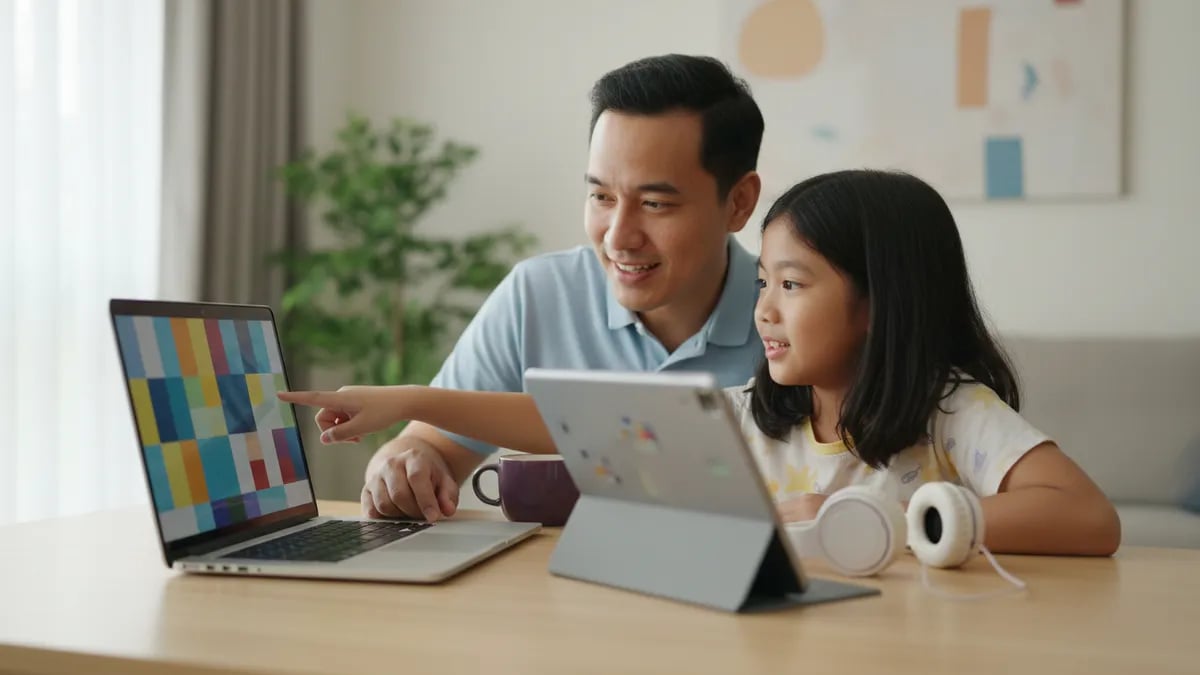
A laptop suitable for an 8 year old's coding class doesn't need to be new or expensive: 4 GB of RAM, a real keyboard and a webcam are enough for live lessons and Scratch. Tablets work for children aged 5 to 7. Chromebooks handle Scratch well, but Roblox Studio runs only on Windows and Mac, so from about age 10 a regular laptop saves trouble.
The right device depends on age and on the tool your child will code in. A live class has two jobs to do at once: a video call with the teacher and a coding editor next to it. The older the child, the heavier the editor.
| Age | What they usually code in | Device that works | Minimum to check |
|---|---|---|---|
| 5 to 7 | Tap and drag blocks, simple apps, mouse and keyboard practice | Tablet of 10 inches or more, or any laptop | Front camera, headphones |
| 8 to 11 | Scratch in the browser | Laptop or Chromebook | 4 GB RAM, keyboard, mouse |
| 10 to 12 | Roblox Studio | Windows or Mac laptop | Windows 10 or macOS 10.14, 3 GB RAM, 1600×900 screen |
| 12 to 17 | Python and a code editor | Windows or Mac laptop | 8 GB RAM is comfortable |
Children move down this table as they grow. A 9 year old who loves Scratch today may want Roblox Studio in two years, so buy for where they will be next year rather than only for this term.
A Windows or Mac laptop runs every tool a child meets from age 5 to 17. Tablets and Chromebooks run some of them.
| Windows or Mac laptop | Chromebook | Tablet (iPad or Android) | |
|---|---|---|---|
| Live video lesson | Yes | Yes | Yes |
| Scratch | Browser or app | Browser or app | Browser; no iPad app |
| Roblox Studio | Yes | No | No |
| Python with a full editor | Yes | Only through Linux, which school devices may block | No |
| Typing practice | Real keyboard | Real keyboard | Needs an add-on keyboard |
| Video call and editor side by side | Easy | Easy on 13 inches | Hard on one screen |
Roblox Creator Hub lists Roblox Studio as an app for Windows and Mac only, with a minimum of 3 GB of RAM and a 1600×900 screen (Roblox Studio setup). For a child who asks "can you get Roblox Studio on a laptop?", the answer is yes, as long as it is not a Chromebook.
A tablet is enough for children aged 5 to 7 and for short Scratch sessions, and it gets tiring after that. Young children tap and drag, and a 10-inch screen gives them room to do it.
The trouble starts with the split screen. In a live class, your child watches the teacher, listens and moves blocks at the same time. On a tablet, the video window and the editor fight for one screen. Scratch also has no official iPad app, so on an iPad your child works in Safari or Chrome.
Example: Nurul, 7, from Seremban, joined her first lessons on the family's 10-inch Android tablet with a cheap Bluetooth keyboard. It worked well for a year. When she turned 8 and started full Scratch projects, her parents moved her to her father's old laptop, mainly for the bigger screen.
If a tablet is all you have, a stand and a cheap keyboard fix most of the problems. Headphones help too.
A Chromebook is a good, cheaper choice for a child aged 8 to 11 who codes in Scratch. Scratch runs in the Chrome browser, and the Chromebook keyboard and trackpad are fine for dragging blocks.
Limits appear later. Roblox Studio does not run on ChromeOS. Python with a proper editor needs the Linux development environment, and Google's own Chromebook help notes that this can take 10 minutes or more to set up and may be unavailable on work or school devices. If the Chromebook came from school with a managed account, assume you can't install anything on it.
Buy for the tool your child will use next year, not the one they use today.
A practical rule: if your child is 10 or older and already talks about making Roblox games, skip the Chromebook and look at a basic Windows laptop instead.
Any working laptop from the last five years is usually suitable for an 8 year old's coding class. A child's first coding laptop doesn't need a gaming graphics card or the newest processor. Check these points before you buy or hand down a laptop:
A hand-me-down laptop from a parent or an older sibling often passes all six checks. Reset it, create a separate user account for your child and remove games before the first lesson.
Internet speed matters as much as the device. Our free master class runs on Zoom, and Zoom recommends 1.2 Mbps for a 720p one-to-one call and 2.6 Mbps up and 1.8 Mbps down for a 720p group call. Most home fibre plans give far more than that, but a weak Wi-Fi signal in a bedroom can still drop the call.
Before the first class:
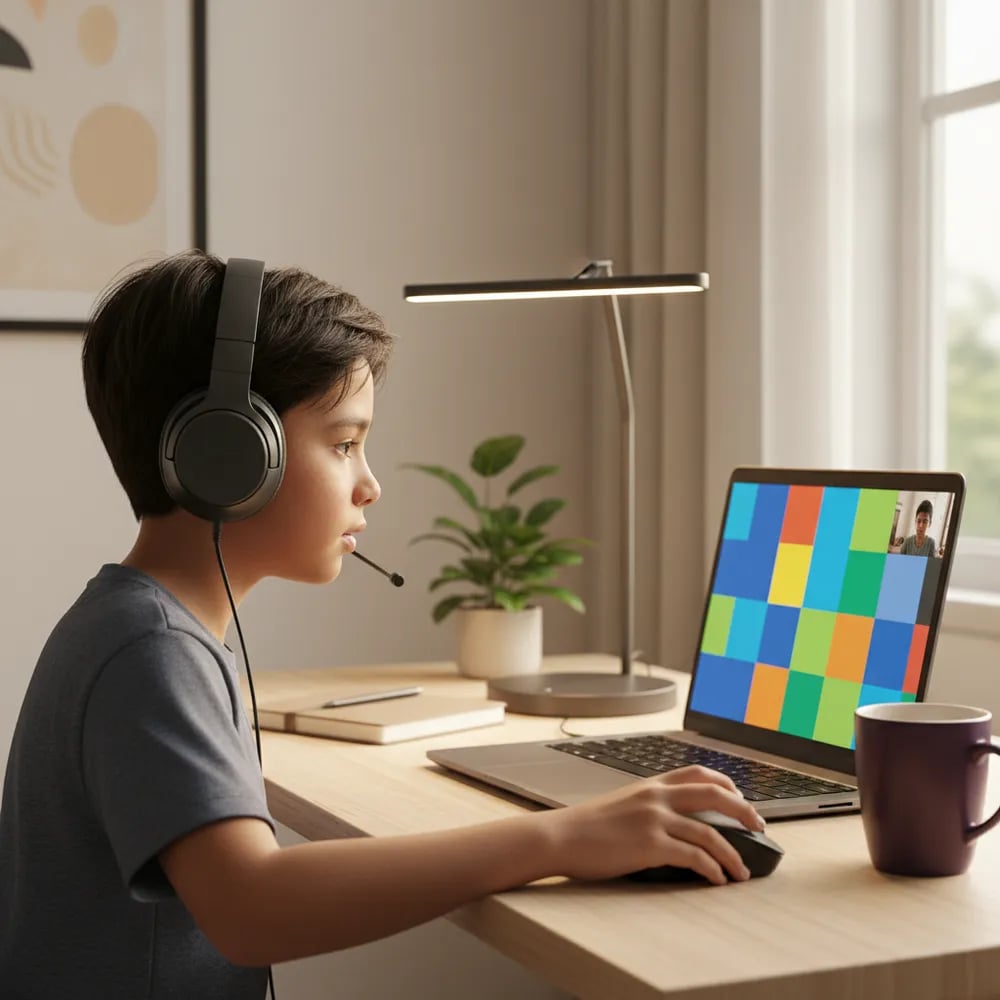
The device that works best is often the one already at home.
Arif, 6, from Kuching, started with his mother's iPad and a stand. He practised dragging, clicking and recognising letters on the keyboard. The family plans a laptop at 8, when he moves to Scratch.
Jia Hui, 9, from Petaling Jaya, uses a Chromebook her parents bought for school projects. Scratch runs smoothly, and she shares the screen with her teacher without trouble. Her parents know a Chromebook will not run Roblox Studio and will revisit the question in Year 5.
Kumar, 13, from Johor Bahru, wanted to build Roblox games and later learn Python. His family bought a mid-range Windows laptop with 8 GB of RAM. It runs Roblox Studio, a code editor and the video lesson together.
For more on Scratch at home, see our guide to Scratch online for kids. If your child is choosing between the two tools, read Roblox Studio or Scratch.
A laptop suitable for an 8 year old has at least 4 GB of RAM, a 13 to 15 inch screen, a working webcam and Windows 10, macOS or ChromeOS. At this age most children code in Scratch, which runs in a browser and needs little power. A mouse matters more than the processor, because dragging blocks with a small trackpad tires young hands. A parent's old laptop from the last five years usually passes these checks once it is reset and given a separate child account. If your child already plays Roblox and wants to build games, pick a Windows or Mac laptop rather than a Chromebook, because Roblox Studio does not run on ChromeOS. Spending more rarely helps at 8. Spend instead on headphones with a microphone and a desk where the screen sits at eye level.
A tablet is good enough for children aged 5 to 7 and for short Scratch sessions, but most children outgrow it by 8 or 9. A young child mainly taps and drags, and a 10-inch screen gives enough space for that. The problem is the live lesson itself: the video call and the coding editor share one screen, and on a tablet both get small. Scratch has no official iPad app, so iPad users work in the browser. For example, a 7 year old can finish a year of beginner lessons on an Android tablet with a Bluetooth keyboard and a stand. When projects get longer, a laptop or Chromebook makes the work easier. If a tablet is your only device for now, add a keyboard, a stand and headphones before the first class.
You can get Roblox Studio on a Windows or Mac laptop, but not on a Chromebook, an iPad or an Android tablet. Roblox Creator Hub lists Roblox Studio as a free app for Windows and Mac, with a minimum of Windows 10 or macOS 10.14, 3 GB of RAM and a screen of 1600×900 or higher. A Chromebook cannot run Studio, which is the tool for building games. Phones can't run it either. Children who want to make Roblox games usually start around age 10 to 12. If that is your child's plan, a basic Windows laptop with 8 GB of RAM is a safer purchase than a Chromebook. Check the screen resolution in the specifications too, because some budget laptops still come with 1366×768 screens.
A Chromebook can run Python, but only after you turn on the Linux development environment, and that is not always possible. Google's Chromebook help explains that Linux setup can take 10 minutes or more and that work or school Chromebooks may block it. Once Linux is on, a teenager can install Python and a code editor. On a Chromebook managed by a school, parents often cannot change these settings at all. For a child aged 12 to 17 who is serious about Python, a Windows or Mac laptop is simpler: the editor installs normally, files save where the child expects, and nothing depends on a hidden setting. For a child aged 8 to 11 who codes in Scratch, a Chromebook is perfectly fine and often cheaper than a Windows laptop with the same screen.
Scratch works on an iPad in the browser, but there is no official Scratch app for iPad. Your child opens scratch.mit.edu in Safari or Chrome, presses Create and drags blocks with a finger. Saving works through a Scratch account or by downloading the project file. A 10-inch iPad or larger is far more comfortable than a mini, and a Bluetooth keyboard helps with naming sprites and typing short messages. Some Scratch blocks expect a key press, so a keyboard also makes certain games playable. Avoid App Store apps with Scratch in the name, because they come from other developers. For children aged 5 to 7, the official ScratchJr app runs on iPad and is the better first step. From about 8, full Scratch on a laptop or Chromebook is easier for longer projects.
A kid's coding laptop needs at least 4 GB of RAM, and 8 GB is the comfortable choice for children aged 10 and older. Zoom lists 4 GB as its minimum for video calls on Windows and Mac, and Roblox Studio asks for 3 GB just for itself. Put the two together in one live class and a 4 GB laptop starts to slow down. For Scratch in a browser, 4 GB is enough, because the editor is light. For Roblox Studio or Python with a code editor open next to the lesson, 8 GB keeps everything responsive. Storage matters less: 128 GB is plenty for school files and coding projects. If you are choosing between more RAM and a faster processor on a budget, choose RAM. It makes a bigger difference to how smoothly the video and the editor run together.
An online coding class needs a stable connection of a few megabits per second, and stability matters more than the headline speed. Zoom recommends 1.2 Mbps for a 720p one-to-one call and 2.6 Mbps up and 1.8 Mbps down for a 720p group call. Most home fibre plans give far more than that. Calls still drop when the laptop sits far from the router, or when someone else streams video in the next room. Before the first lesson, run a speed test in the exact place your child will sit. If the result is poor, move closer to the router, add a Wi-Fi extender or plug in a cable. Mobile hotspots work in an emergency, but a 60-minute video lesson can use several hundred megabytes of data, so check your plan.
A phone is not a good device for an online coding class, although it can work for one emergency lesson. The screen is too small to show the teacher, the editor and the project at once, and children make mistakes that have nothing to do with coding. Scratch, for example, is built for computers and tablets, and building on a phone is awkward. A phone is fine for watching a finished game or showing it to grandparents. If a phone is the only option this week, tell the teacher in advance and use headphones. For regular lessons, even an older laptop or a 10-inch tablet with a keyboard is a big step up. Many families already have one of these at home and only need to reset it for the child.
Yes, a webcam and headphones with a microphone make online lessons work much better, and most laptops already have the camera built in. The camera lets the teacher see when a child is confused or stuck, which matters a lot for ages 5 to 9. Headphones keep home noise out of the lesson and stop echo when your child speaks. Simple wired headphones with a microphone are enough. Children's headphones with a volume limit are a good idea for long sessions. Test both on a short video call the day before the first class, so the first 10 minutes of the lesson go into coding, not into fixing sound. Place a lamp in front of your child rather than behind, so the teacher can see their face clearly.
Blog
Start your child's tech journey
Book your free 60-minute trial class with an Algonova certified tutor. No payment, no obligation, just discover what your child can build.

Algonova worldwide
Contact us
Email: int_legal@alg.team
Visit us
Suite 8634, 1021 E Lincolnway, Cheyenne, WY, Laramie, US, 82001
Algonova online LLC International tech school for kids and teens