How to Teach Maths to a 6 Year Old: 5 Mistakes Parents Make
Common Mistakes8 min read
Learn Design

Mei Ling Tan
Design Curriculum Team, Algonova Malaysia
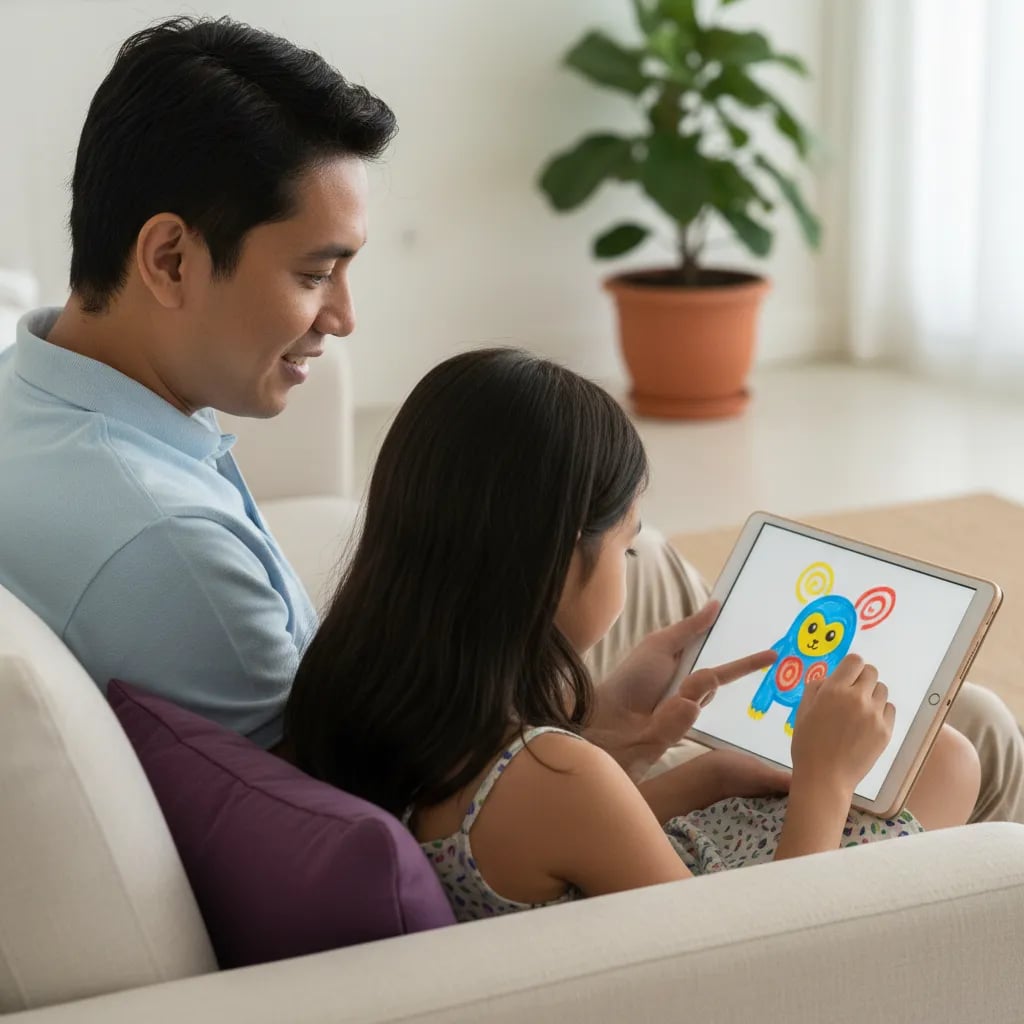
The best drawing apps for kids in Malaysia start free: Tux Paint for ages 5 to 7, and Sketchbook or Ibis Paint X for ages 8 to 14. Paid options such as Procreate cost US$12.99 once and run on iPad only. We checked 7 apps on their store pages on 22 October 2026 for price, devices, ads and data. Start free and pay only if your child is still drawing after a month.
All 7 apps below let a child draw with a finger or a stylus. The table shows what the store pages said on 22 October 2026. Prices are in US dollars as shown in the US App Store, and your Malaysian store may show a different amount in RM.
| App | Cost | Devices | Store age rating | Ads and purchases | Data and account |
|---|---|---|---|---|---|
| Tux Paint | Free | Windows, Mac, Linux, Android. No official iPad app found | 3+ on Google Play, made for ages 3 to 12 | No ads or purchases listed on Google Play | No data collected, follows Play Families Policy |
| Sketchbook | Free, optional Premium Bundle US$2.99 | iPhone, iPad, Android | 4+ on App Store, 3+ on Google Play | No ads label, one optional purchase | No data collected on both stores |
| Ibis Paint X | Free, Premium US | iPhone, iPad, Android | 4+ on App Store, 3+ on Google Play | Contains ads, many purchases | Collects data and shares some with third parties, user-generated content, account for cloud sync |
| MediBang Paint | Free, optional subscription for extra brushes | Android (iPhone not checked) | 12+ on Google Play | Contains ads and purchases | Collects personal info and app activity, shares device IDs |
| Krita | Free, open source | Windows, Mac, Linux, Android tablets and Chromebooks (beta, no phones). Not iPad | 3+ on Google Play | Purchases listed on Google Play, no ads label | No data collected |
| Procreate | US$12.99, one time | iPad only, iPadOS 16.3 or later | 4+ | None listed | No data collected |
| Procreate Pocket | US$5.99, one time | iPhone only | 4+ | None listed | No data collected |
A note on Tux Paint: the App Store has a paid iPad app with a similar name from another developer, which is not the official free program.
A store rating of 4+ only says the content is suitable. It says nothing about ads, purchases or who can see your child's drawings.
Match the app to what your child can handle alone, not to the longest feature list. A small set of tools is easier to use at 6 than 130,000 brushes.
Ages 5 to 7: Tux Paint. The developer describes it as a drawing program for ages 3 to 12, with an easy interface, sound effects and stamps. It has no ads or purchases on Google Play and collects no data. It runs on a family laptop or an Android tablet, so a parent can sit next to the child for the first 15 minutes.
Ages 8 to 10: Sketchbook. The interface is clean, it has layers and pencil, marker and airbrush brushes, and the store lists no data collection. A child who has outgrown stamps can learn the idea of layers here. If your child is keen to follow a tutorial, our step-by-step guide to a first digital drawing shows the process in Ibis Paint X.
Ages 11 to 14: Ibis Paint X, Krita or Procreate. Ibis Paint X is free and powerful, but it has ads and user-generated content, so sit down together and check the privacy settings first. Krita suits a child with a laptop or a tablet, and its store pages show no ads label. Procreate is worth the one-time price mainly if your family already owns an iPad. MediBang Paint is rated 12+ on Google Play, so it fits the older end of this range.
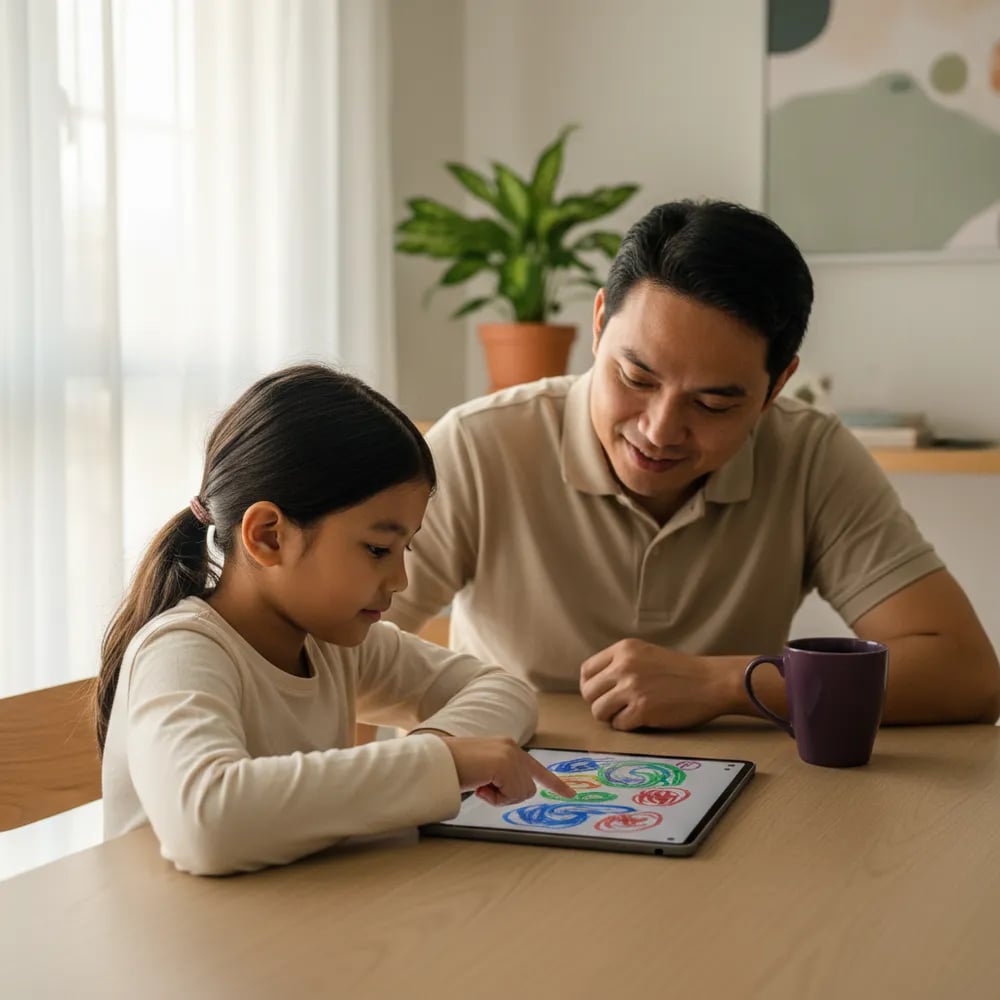
A drawing app is safe for a child when you have checked five things on its store page. Do the checks yourself, because the app's name and icon say little about its business model.
The AAP also advises avoiding apps with heavy advertising and turning off autoplay and notifications. If your child asks about AI drawing tools, read our guide to AI tools that are safe for kids before allowing any.
Keep drawing sessions to 20 to 30 minutes and finish with something on paper. The World Health Organization says children aged 2 to 4 should have no more than 1 hour of sedentary screen time a day, and that less is better. It gives no limit for ages 5 and over, so for older children the AAP advice is to build a family media plan: screen-free zones at dinner, during homework and before bed, with rules agreed together.
Here is the routine we suggest, and it is our own guideline, not a study result: 3 sessions a week, 20 minutes each, which is 1 hour a week. Draw the idea on paper first, then colour it in the app. For age-by-age limits across all screens, read our screen time guide for kids in Malaysia.
An app is enough while drawing stays a hobby, and a course helps when your child starts asking how things are made. Look for these signs over about a month:
If two or three of these fit, a class gives structure that an app cannot. Algonova's graphic design course for kids aged 8 to 14 has Design Junior for ages 8 to 12 and Design Senior for ages 11 to 14, 32 lessons each, taught live by a certified teacher in groups of up to 10. Children work in free tools (GIMP, Inkscape, Tinkercad and Wick Editor), so you do not buy Adobe software. It costs from RM 48 per lesson, and the first step is a free 60-minute master class where your child builds a first project. Book it on the free master class page. If you are unsure whether design or coding suits your child, read coding vs graphic design for kids. For what children actually learn in the course, see graphic design for kids.
Tux Paint is the lowest-risk free pick for a 5 year old on the store labels. Its Android listing describes it as a drawing program for ages 3 to 12, and Google Play shows no ads, no purchases and no data collected. It runs on Windows, Mac and Linux as well, so a family laptop works as well as a tablet. Sit beside your child for the first few sessions and show the stamp, shape and colour tools one at a time. Most young children need about 15 minutes of help before they draw alone, and a short first session of 10 to 15 minutes keeps it fun. A simple test: if your child can pick a colour, draw a line and press undo within the first five minutes, the app suits their age. If they ask for help every minute, wait a few months before trying again.
A drawing app is safe when you have checked its age rating, ads, purchases, data collection and community features. The seven apps in this guide differ a lot on those points. Tux Paint, Sketchbook, Krita and both Procreate apps report no data collected on their store pages, while Ibis Paint X and MediBang Paint collect some data and show ads. Before the first session, turn on purchase approval on the device and ask your child not to post drawings publicly. Safety depends mostly on your settings and on sitting nearby, not on the app's name or its 4+ badge. A quick habit helps: once a month, open the app together, look at what is saved, and delete anything your child does not want to keep. It takes five minutes and keeps the conversation about screens friendly.
Procreate is the strongest iPad app on this list, and Sketchbook is the best free one. Procreate costs US$12.99 once on the US App Store, needs iPadOS 16.3 or later, is rated 4+ and reports no data collected. Sketchbook is free with one optional US$2.99 purchase and also reports no data collected. Ibis Paint X runs on iPad too, but it contains ads and sells subscriptions. Tux Paint and Krita have no official iPad version, so skip them if the iPad is the only device at home. Start with Sketchbook and move to Procreate later. If you share the iPad with the whole family, give your child a separate profile or folder for drawings so that finished pictures are easy to find and show to relatives.
Yes, a laptop is enough for a beginner. Tux Paint and Krita both run on Windows, Mac and Linux, and both are free. Krita also has a beta Android version for tablets and Chromebooks, according to its Google Play listing, and its developers do not offer it for phones yet. We did not test any app on a Chromebook, so check the Google Play listing on your own model before installing. A mouse or trackpad works for the first weeks, and a drawing tablet or stylus can wait until your child draws regularly and asks for finer lines. If the laptop is shared, save drawings in a folder named after your child, and print one favourite picture each week for the fridge.
No. A finger on a phone or tablet is enough to start, and a basic stylus can come later if your child asks for one. Children aged 5 to 7 usually find a finger easier because they do not have to learn a new grip. From about 10, a stylus gives finer lines for outlines and lettering, and it also stops the hand from covering the picture. Spend money on a stylus only after your child has drawn regularly for a month, since a stylus that sits in a drawer is wasted money. Check that your device supports it before buying. If you do buy one, pick a simple model with a replaceable tip and let your child try it in a shop first.
Five of the seven apps here are free to start, and the two paid ones are one-time purchases. Procreate is US$12.99 and Procreate Pocket is US$5.99, both paid once. Ibis Paint X is free with ads, and it sells Premium at US$4.49 a month or US$27.99 a year, and ad removal at US$15.99. Sketchbook offers a US$2.99 premium bundle, and MediBang Paint sells a subscription for extra brushes. These are US App Store prices on 22 October 2026, and the RM price in your store may differ. Always check the price in your own store before buying. A sensible budget for the first month is zero: use the free tier of one app, and if you choose to pay later, one of the one-time purchases is cheaper than a year of any subscription.
Aim for 20 to 30 minutes per session, about 3 sessions a week, as a starting point. The World Health Organization sets a limit only for under 5s: no more than 1 hour of sedentary screen time a day for ages 2 to 4, and less is better. For older children, the American Academy of Pediatrics suggests a family media plan with screen-free times such as dinner, homework and before bed. Our own suggestion is to draw on paper first and use the app for colour and layers. Adjust the numbers to your child's age, school load and mood. Try a kitchen timer so the app does not have to be the one that says stop. Some children accept a timer more easily than a parent's voice.
Procreate works well for a child aged about 10 or older who already draws every week and has an iPad at home. It is rated 4+ on the App Store, has no ads and reports no data collected, which is better than most free apps. The drawback is the learning curve, since it has many tools and gestures, and it costs US$12.99 with no free trial listed. For a younger child or a first app, Sketchbook gives a gentler start and costs nothing. Buy Procreate once your child has outgrown the free tools and still asks for more. A middle path is Procreate Pocket on an iPhone at US$5.99, which has fewer tools on a smaller screen. It lets you test your child's interest for less than half the iPad price.
Move to a class when your child draws on their own at least 3 times a week, finishes pieces and starts asking how logos, characters or game art are made. At that point an app gives tools but no teacher, and progress tends to flatten. Algonova's design course is for ages 8 to 14, uses free tools such as GIMP and Inkscape, and costs from RM 48 per lesson. It starts with a free 60-minute master class, so you can see how a live lesson works and what your child makes before paying anything. Not sure about the level? A trial costs nothing, and the teacher sees what your child draws today and suggests Design Junior for ages 8 to 12 or Design Senior for ages 11 to 14.
Blog
Start your child's tech journey
Book your free 60-minute trial class with an Algonova certified tutor. No payment, no obligation, just discover what your child can build.

Algonova worldwide
Contact us
Email: int_legal@alg.team
Visit us
Suite 8634, 1021 E Lincolnway, Cheyenne, WY, Laramie, US, 82001
Algonova online LLC International tech school for kids and teens